
Background Remover
Keep the subject in focus and remove distracting backgrounds from your image.
See the change. Inspect the details.Color icon cutouts
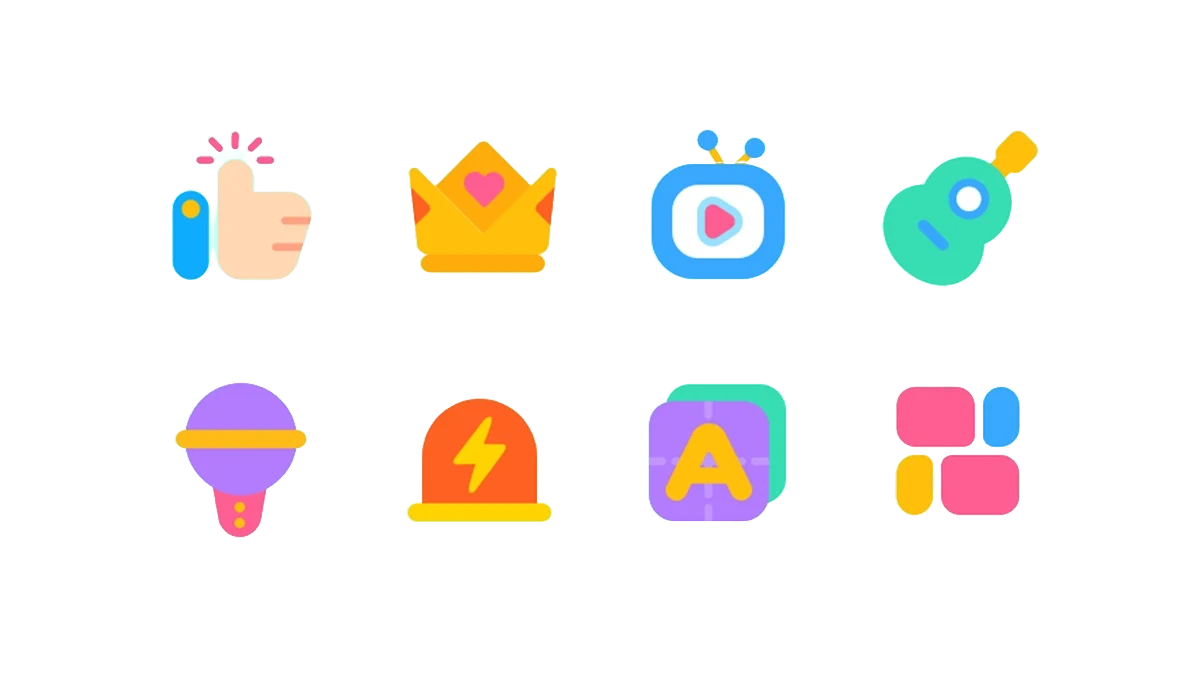
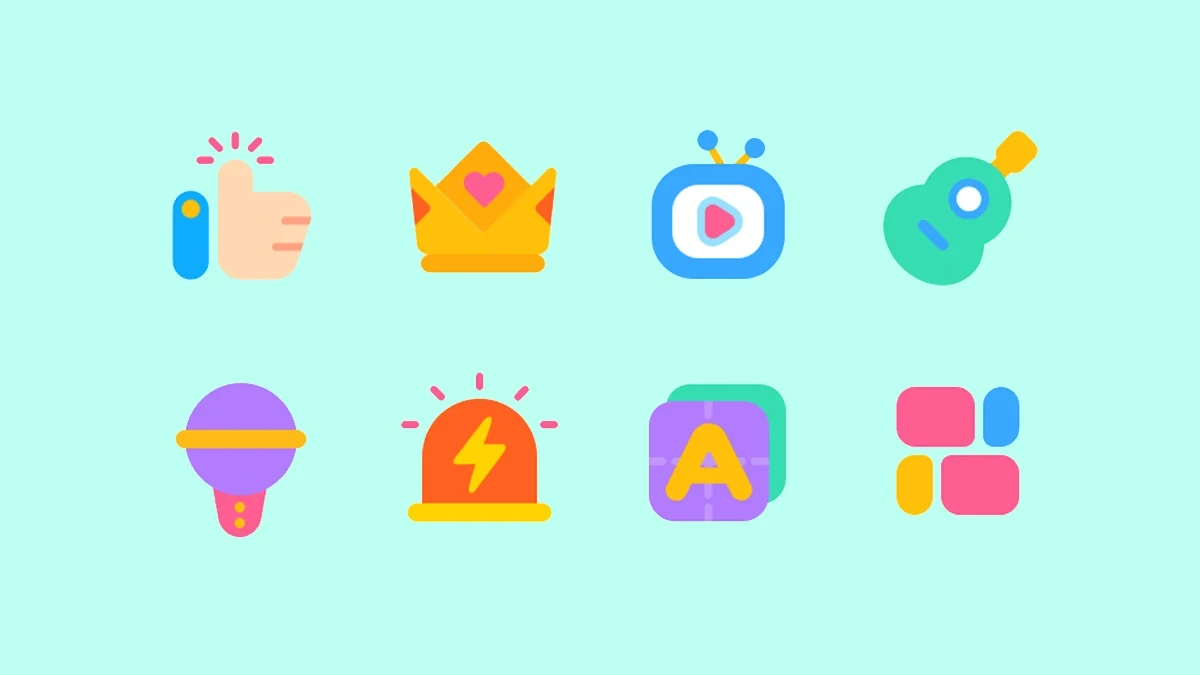
Drag the divider, or focus and use arrow keys. Home / End reveals one full side.
Reference demonstration from SeaArt, not a verified Uyo output. Results depend on your source and selected model. SeaArt ↗
Your image, a new possibility.
Start with a sample or upload your own image.
Try a Sample
See the change. Inspect the details.
Explore interactive comparisons and source illustrations, inspect the details, and choose a direction for your own image.
Drag the divider, or focus and use arrow keys. Home / End reveals one full side.
Color icon cutouts
Inspect transparent gaps, small decorations and rounded edges across separate icons. Switch light and dark backgrounds to spot remaining color.
Remove the pale green background behind the colorful icons. Preserve rounded edges, decorations and original colors on a transparent background.
Reference demonstration from SeaArt, not a verified Uyo output. Results depend on your source and selected model. SeaArt ↗
History
View AllYour next creation starts here
Generate an image or video. Your tasks and saved results will appear here.
Start CreatingHow It Works
Upload your image
PNG, JPG or WebP. Up to 2 MB per image.
Generate and preview
Keep the subject in focus and remove distracting backgrounds from your image.
Download and keep creating
Open a finished creation to preview, download or continue editing.
Frequently Asked Questions
Is the result always a transparent PNG?
This tool removes backgrounds through AI image editing. Output format and transparency depend on the model, so an alpha channel is not guaranteed. Check the downloaded file: a checkerboard pattern alone does not mean the background is transparent.
Where can I find my creations?
Sign in and open My Creations. Your saved tasks and results are linked to your account, so you can return after refreshing the page.
What happens when a task fails?
The task shows a failure state. Eligible deducted credits are returned through the task system. Check Credit History and contact support if something looks incorrect.
How are credits calculated?
Image quality, the selected model, and video duration can change the cost. The generate button shows an estimate based on your current settings.
Are my creations private?
New creations are private by default and account records require your sign-in. A direct media URL supplied by a provider may still be accessible to anyone holding that link. See the Privacy Policy for details.